Sign in




Why Does Upgrading Your NAS to 2.5GbE Not Improve Network Speed?
< BackWhy Does Upgrading Your NAS to 2.5GbE Not Improve Network Speed?
1. Why Gigabit Ethernet Is No Longer Enough
Gigabit Ethernet offers a theoretical bandwidth of 125 MB/s, with actual transfer speeds typically around 110 MB/s. While sufficient for everyday browsing, it becomes a bottleneck when transferring large files to and from a NAS. A 4K movie can easily occupy 50–80 GB, taking 8–12 minutes to copy over Gigabit Ethernet. Transfers become even slower when multiple devices access the NAS simultaneously.
When a NAS serves PCs, TVs, and smartphones at the same time, Gigabit bandwidth can quickly become saturated. Full backups using Time Machine or Synology Hyper Backup may take hours. Running virtual machines or downloading Docker images also increases network and storage I/O, making Gigabit Ethernet a significant bottleneck.
2.5GbE delivers real-world transfer speeds of approximately 280 MB/s, around 2.5 times faster than Gigabit Ethernet. It works with standard Cat5e Ethernet cables, so there is no need to upgrade to fiber. This makes 2.5GbE a cost-effective choice for home network upgrades compared with 10GbE.
2. Common Pitfalls When Upgrading to 2.5GbE
Installing a 2.5GbE network card does not automatically guarantee faster transfers. Several common problems can prevent users from achieving the expected performance.
Pitfall 1: One Gigabit Device Slows Down the Entire Connection
Every component along the data path must support 2.5GbE. The connection may include the PC's 2.5GbE NIC, Ethernet cables, a 2.5GbE switch, and the NAS's 2.5GbE NIC. If any component supports only Gigabit Ethernet, IEEE 802.3 auto-negotiation may establish a 1GbE connection.
To troubleshoot, check the negotiated link speed on the PC. On Linux, use ethtool; on Windows, check the network adapter's status.
Pitfall 2: Poor Ethernet Cable Quality
Cat5e cables can support 2.5GbE if they meet the required quality standards. Poor-quality in-wall cables or incorrectly wired wall outlets can cause unstable connections. 2.5GBASE-T requires all four twisted pairs, meaning all eight conductors must be properly connected.
Symptoms may include packet loss, retransmissions, and low throughput despite a negotiated 2.5GbE connection. Use a cable tester to verify all eight conductors, or temporarily test with a factory-made Cat6 cable.
Pitfall 3: Network Driver Problems
Some 2.5GbE NIC drivers may have compatibility or performance issues on Linux. A link may negotiate at 2.5GbE while iperf3 reports only 400–600 Mbps. TSO or GSO errors and intermittent disconnections may also occur.
Use ethtool -S to inspect error counters and packet drops. Temporarily disable TSO and GSO for testing. If performance improves, update the driver or keep the affected offload feature disabled as a workaround.
Pitfall 4: NAS Storage Performance Limitations
A 2.5GbE connection can deliver approximately 280 MB/s under ideal conditions, but a single mechanical hard drive may achieve only 150–200 MB/s in sequential transfers. In this case, the storage device—not the network—is the bottleneck.
Multi-drive RAID configurations such as RAID 0, RAID 5, or RAID 10, as well as SSD caching, may help utilize the available network bandwidth. Use dd or fio on the NAS to measure local disk performance and rule out storage limitations.
Pitfall 5: SMB Protocol Overhead and Encryption
SMB signing and encryption can increase CPU overhead, particularly when SMB3 encryption is enabled during high-throughput transfers. If the NAS uses a low-power processor such as the Intel J4125, encryption may limit performance well below the expected 2.5GbE throughput.
Temporarily disable SMB encryption to test performance. On Synology systems, check the advanced SMB settings under File Services in Control Panel. For compatible Samba configurations, review server signing and server smb encrypt in smb.conf; settings such as server signing = auto and server smb encrypt = disabled may be appropriate depending on your security requirements.
3. What Do You Need to Upgrade to 2.5GbE?
After ruling out the issues above, prepare the required hardware. Both the PC and NAS need a 2.5GbE network interface.
When selecting a NIC, consider the chipset, interface, power consumption, and operating system compatibility. Options include proprietary chipsets, Intel, and Realtek. The Realtek RTL8125 is affordable, although driver issues may occur on some Linux systems. Other chipset solutions may offer broad platform support and low power consumption, depending on the specific driver and implementation.
PCIe x1 and x4 interfaces can both support 2.5GbE. Check that your motherboard has an available PCIe slot. Low power consumption is particularly important for NAS systems because it helps reduce heat and improve stability.
Confirm compatibility with your NAS operating system, including Synology DSM, TrueNAS, and Unraid, as well as domestic computing platforms based on Phytium, Kunpeng, and Loongson processors.
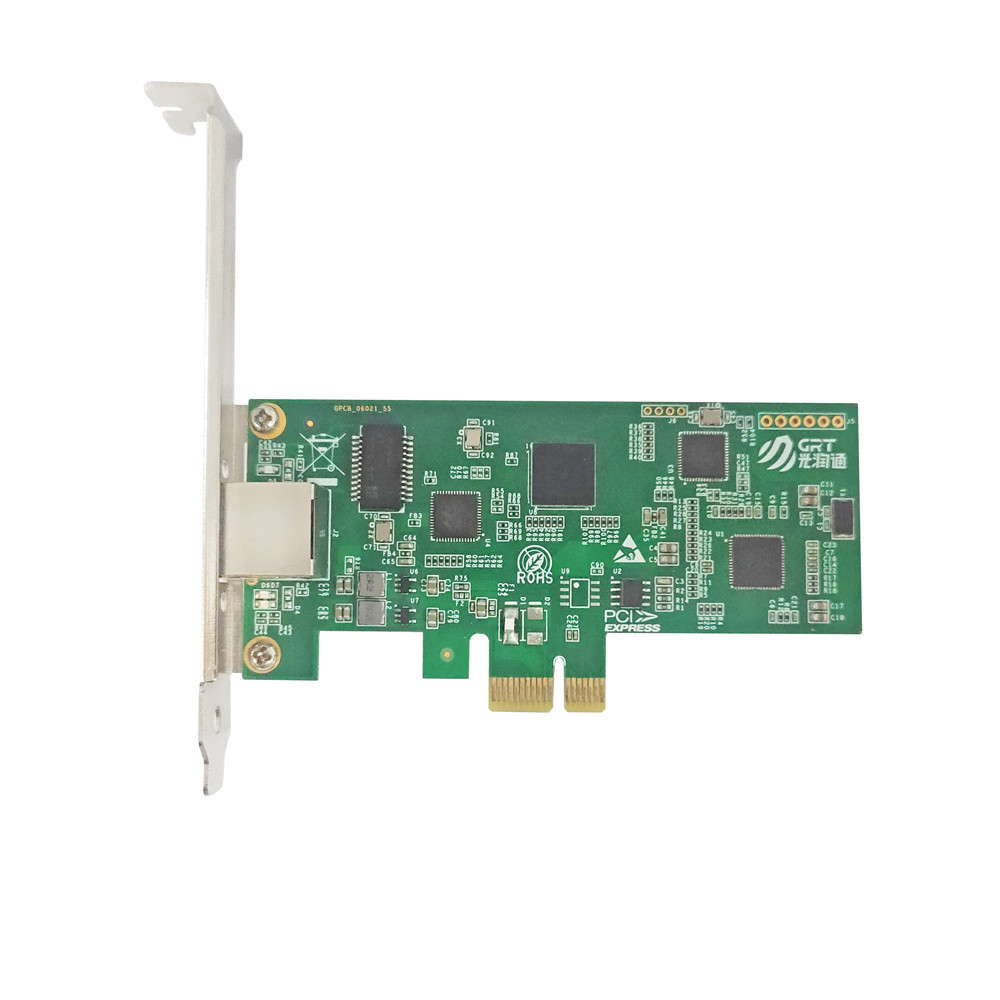
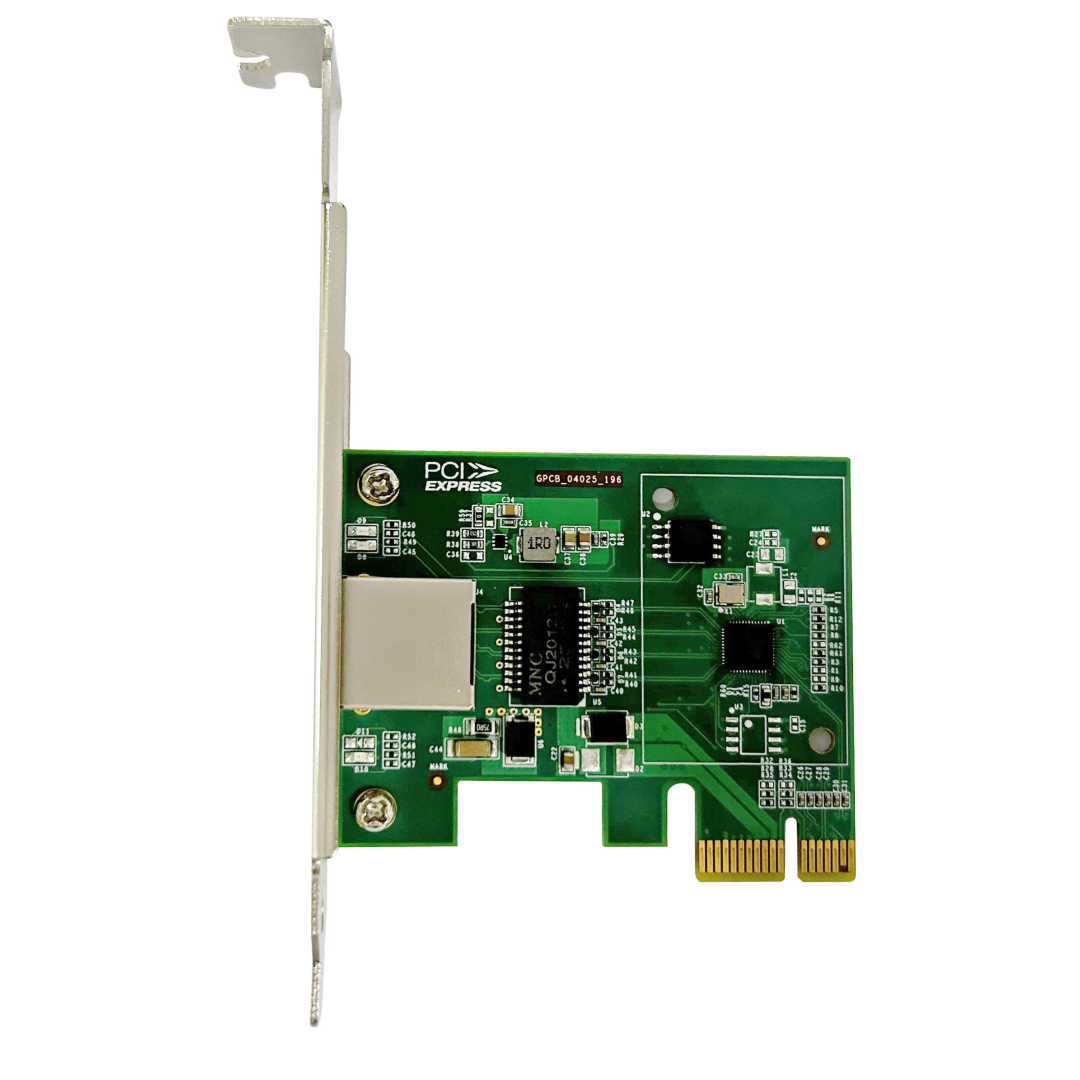
For example, the Guangruntong (GRT) GF-901T2.5G-V3.0 uses the in-house-developed G225T chipset, a PCIe 2.1 interface, and a single RJ45 port. Its power consumption is just 2 W, and it supports automatic negotiation at 2.5GbE, 1GbE, 100 Mbps, and 10 Mbps.
Its operating system compatibility includes mainstream Linux distributions such as CentOS, Ubuntu, and Red Hat, as well as domestic computing ecosystems such as Phytium with Galaxy Kylin, Kunpeng with NeoKylin, Loongson with NeoKylin, and Hygon with UOS. This can simplify deployment for users planning to build NAS systems in domestic IT environments.
A 2.5GbE switch is also recommended. If you only need to connect one PC and one NAS, a direct Ethernet connection may eliminate the need for a switch. However, most homes have multiple devices, making a 5-port or 8-port 2.5GbE switch a practical choice. Check that all ports support 2.5GbE rather than choosing a model with only a 2.5GbE uplink and Gigabit downlink ports.
Cat5e or better Ethernet cables can work, but factory-made Cat6 cables are a good choice for reliability. For in-wall cables, verify that all eight conductors are connected correctly.
The network topology is straightforward: connect the PC's 2.5GbE NIC to the 2.5GbE switch, then connect another switch port to the NAS's 2.5GbE NIC. Every component in the connection must support 2.5GbE.
4. How to Upgrade: Step-by-Step Guide
Step 1: Install the Network Card
Power off the computer and install the 2.5GbE NIC in an available PCIe slot. Choose a low-profile or full-height bracket according to your chassis. Many NICs include both bracket types. Power on the system after installation.
Step 2: Verify Driver Installation
On Linux or the NAS, use lspci to check whether the NIC is detected, ethtool -i to inspect the driver module, and ethtool to check the negotiated link speed.
On Windows, open Device Manager and check Network Adapters. Confirm that the NIC is recognized and the driver is working correctly. If a yellow warning icon appears, install the appropriate driver manually.
Step 3: Configure the Link Speed
Some systems may not negotiate 2.5GbE as expected. On Linux, use the appropriate ethtool settings to configure the speed, duplex, and auto-negotiation. For example, the intended settings are speed 2500 duplex full autoneg on, provided the driver supports them.
On Windows, open the network adapter's Properties and check the Speed & Duplex options. Select 2.5 Gbps if the driver exposes that setting.
Step 4: Test Connectivity
On the PC, run iperf3 -c followed by the NAS IP address to test for 30 seconds. Then repeat the test with the -R parameter to measure reverse-direction throughput.
A healthy 2.5GbE connection should typically achieve around 2.3–2.4 Gbps in iperf3. If the result is significantly lower, revisit the troubleshooting steps in Section 2.
Step 5: Verify Real File Transfer Speeds
Copy a file larger than 10 GB using SMB or SCP and observe the actual transfer rate. On a 2.5GbE network, SSD-to-SSD transfers may reach 250–280 MB/s, while HDD-to-SSD transfers may achieve approximately 150–200 MB/s, depending on the mechanical drive.
5. A Systematic Troubleshooting Workflow for Slow NAS Transfers
If the 2.5GbE connection is established but file transfers remain slow, troubleshoot the system in order.
First, check the negotiated link speed with ethtool. If it still shows 1000 Mb/s, look for a Gigabit-only device in the connection.
Next, run an iperf3 bandwidth test. If throughput is below 2 Gbps, investigate the NIC driver, Ethernet cables, and switch.
Then measure local disk performance. Use dd to write a 10 GB test file. If disk throughput is below 200 MB/s, storage performance may be the bottleneck.
Temporarily disable SMB encryption and repeat the test. A significant improvement may indicate CPU overhead from encryption. Monitor CPU utilization as well. If software interrupts consume a large share of CPU resources during transfers, test whether disabling TSO and GSO helps.
Finally, inspect NIC error statistics using ethtool -S, filtering for error and drop. A high number of errors may indicate a cabling problem or a faulty NIC.
6. Conclusion
Upgrading from Gigabit Ethernet to 2.5GbE is one of the most cost-effective ways to improve a home NAS network, but installing a new NIC alone is not enough.
The key requirements are:
-
End-to-end 2.5GbE: The PC NIC, cables, switch, and NAS NIC must all support 2.5GbE.
-
Proper cabling: Cat5e can work, but all eight conductors must be correctly connected.
-
Reliable drivers: Choose a chipset with good driver support for your operating system and platform.
-
Check other bottlenecks: Hard drive performance, SMB encryption, and CPU limitations can all restrict throughput.
-
Choose the right NIC: Low power consumption, broad compatibility, and independently developed technology can be valuable for long-term use.
2.5GbE is not the ultimate upgrade, but it is sufficient for many home NAS environments. It offers a practical balance of performance, cost, and ease of deployment. Following this troubleshooting workflow can help you identify bottlenecks and get the most out of your 2.5GbE network.

- Prev: What Is an OCP 3.0 Network Card?
- Next: None
Latest information
- Why Does Upgrading Your NAS to 2.5GbE Not Improve Network Speed?
- What Is an OCP 3.0 Network Card?
- The King of Cost-Effective 25G NIC: In-Depth Analysis of Guangruntong (GRT) GH2502EM-V4.1
- The Hidden Relationship Between NIC Heat Dissipation and Data Center Cabinet Layout
- Why are serpentine traces designed on the NIC PCB board
- NIC and Operating System Ecosystem Adaptation: From Hardware Compatibility to Win-Win Performance
- NIC Hardware Offload Technology: Let Server CPU Focus on Business Computing
- Network Card Driver: The Invisible Bridge Between Hardware and Operating System